


Remote for Fire TV & FireStick
4.06.65K Reviews
App Specs
- Version
- 2.0.1
- Updated On
- License
- Free
- Downloads
- 10,000,000+
- Developer
- BoostVision
- Categories
- Entertainment
- Platform
- Android
Screenshots
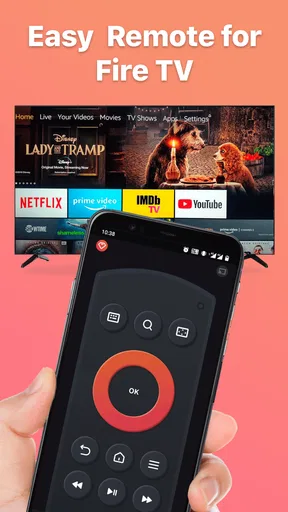
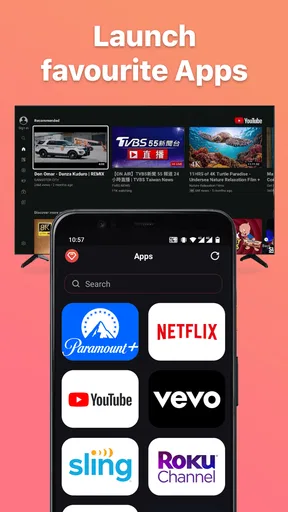
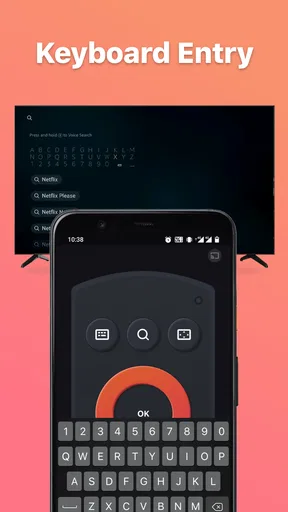
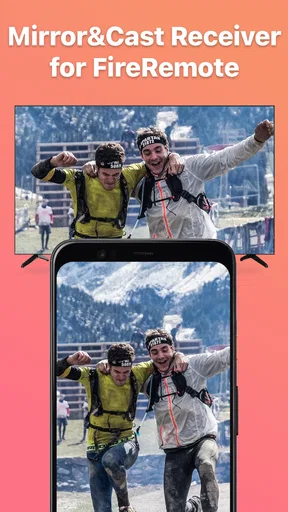
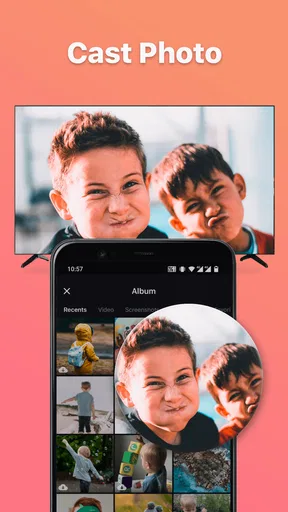
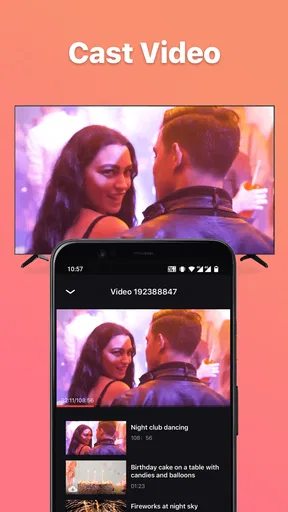
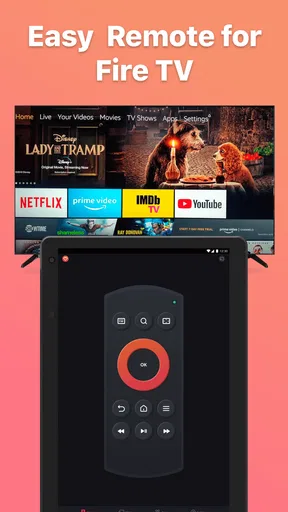
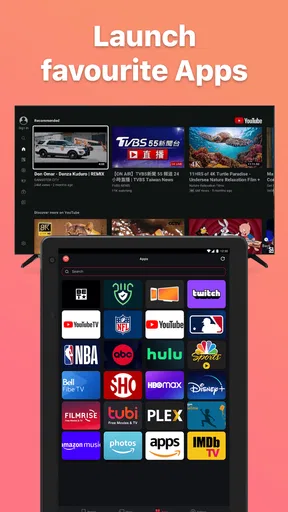
 Analysis by AppCompare
I reach for a phone remote most often when the physical Fire TV remote has slipped between the sofa cushions, but that is only one reason to try this app. It is an entertainment app from BoostVision, and its appeal is the way it brings several common TV-control tasks together on a device I already keep nearby. Remote for Fire TV & FireStick is free to install, with optional in-app purchases, so I would treat it as a convenient backup first and decide later whether its extra options suit my routine.
When the phone becomes the remote
The best starting point is a simple one: your phone and Fire TV need to be on the same Wi-Fi network. Once that condition is met, the app can look for the TV device, letting you move from opening the app to navigating the screen without pairing a cable or entering an account. That makes it useful when guests are ready to watch and the little remote has gone missing, or when you want to control playback from the seat where you are already holding your phone.
There is one practical detail I would check before relying on it: the phone and streaming device need to share the same network, not merely have internet access. If one is on a guest network or a different Wi-Fi connection, discovery may not work as expected. I would check the network first rather than repeatedly tapping controls or reinstalling the app.
From finding a title to settling in
After the connection is made, the workflow is familiar: use the directional controls or touchpad to move around, select a title, then use playback buttons once the video starts. For a quick search, voice input can save effort; for a password or a precise title, the phone keyboard is often more practical than entering characters with directional clicks. Those are distinct jobs, and having both options can make the app more useful than a simple button-for-button substitute.
A small but helpful habit is to use the touchpad for broad movement through menus and switch to directional buttons when you need deliberate, one-step navigation. Swiping can feel faster, but it is not always the best choice when several neighboring tiles look similar. The phone’s keyboard is also most valuable before playback, when you are entering a search or login detail; once a show is running, the standard playback controls are the part you are likely to use most.
Where control passes between devices
This app sits between your phone and Fire TV; it does not replace the streaming service or move the video onto the phone. You still choose and watch content on the television, while the phone acts as the input device. That distinction matters if you are hoping to mirror the phone’s display: screen mirroring is a separate task from remote control, even though casting and mirroring may be part of a broader Fire TV workflow.
For an ordinary evening, the handoff can be straightforward: search for a film on the phone, choose it on the TV, and put the phone down once playback begins. If you need to pause, change direction in a menu, or enter another search, pick it up again. I find this especially convenient when the physical remote is unavailable, but it is not a reason to expect the phone to take over every part of a viewing setup.
Worth Reading Before You Choose

EA SPORTS FC Mobile 26 Is a Bigger Football Game, but It Takes Time

Flipboard Shows What News Apps Must Do Beyond the Feed

Switching to Android Auto Means Rethinking Your Driving Routine

Google Calendar Makes a Crowded Week Easier to Manage

Ludo King Makes the Most of the Minutes Between Plans

Baby Panda World Brings Quick Play to Modern Phones, but Its Game Library Feels Busy
What the day-to-day experience depends on
Responsiveness depends on the connection between the phone and the TV as well as the app itself. When both devices are reachable on the same network, control can feel quick; when discovery is delayed or the network changes, the experience can become less dependable than a physical remote. My first troubleshooting step would be to confirm the network on both devices and reopen the app, then try a directional button before assuming that every control is failing.
The app’s free entry point is appealing, but it also offers in-app purchases, ranging from $3.99 to $29.99 per item. I would start with the controls I actually need and check what an optional purchase adds before paying. If all you want is a backup for navigation and playback, spending money may not be necessary; someone who expects to use additional options regularly may judge that trade-off differently.
Who is likely to get the most from it?
I would recommend it to someone who often misplaces a Fire TV remote, wants phone-based text entry, or prefers having a second control option within reach. It can also be handy in a shared home when one person has the remote and another wants to pause or navigate without asking for it. On the other hand, if you need reliable control when Wi-Fi is unavailable, or you strongly prefer the feel of physical buttons, the original remote is the better tool to keep close.
It is also worth separating this app from the usual alternatives. A physical remote is simpler when you want tactile buttons and do not want to pick up a phone. A TV maker’s remote app may be a better fit if you mainly control that television’s built-in interface. This app makes most sense when the Fire TV device is the screen you want to navigate and phone typing or touch controls solve a real annoyance.
A quick look at the app itself
BoostVision’s app is listed in the Entertainment category and is rated for Everyone. It has a 4.1 average from around 87,000 ratings, with over 5 million installs, so it has found a sizeable audience without that popularity guaranteeing a perfect fit for every home. It was released on January 18, 2022, and version 1.9.7 requires Android 7.0 or later. Those details make it straightforward to judge whether an Android phone can run it; the app is also available on iOS.
The interface aims to keep the main controls easy to spot rather than making you learn a complicated layout. I like that approach for a tool people may open in a hurry. Dark mode is another sensible touch for evening use, though the main benefit remains practical: the screen gives you navigation, typing, and playback controls without searching for a separate device.
Getting Started: Easy Peasy Setup
First things first, the setup process. One of the things I really appreciated was how straightforward it was. You just need to download the app on your smartphone, and make sure both your phone and Fire TV are connected to the same Wi-Fi network. Voila! The app instantly detects your device, and you’re good to go. No tangled wires or complicated configurations. It’s almost like magic!
What’s cool is that the app doesn’t require any registration or signing in, which is a breath of fresh air in today’s world of endless login screens. Just open, connect, and start controlling your TV. Simple as that.
Functionality: More Than Just a Remote
Now, onto what you can actually do with it. The app isn’t just a basic remote—you get a full-on control center on your phone. It’s got all the standard buttons you’d expect, like play, pause, fast-forward, and rewind. But there’s also a nifty touchpad feature that lets you swipe and navigate through your Fire TV interface seamlessly.
One standout feature for me is the voice search. You can speak directly into your phone to find shows or movies without typing out long titles on the screen. It’s super handy, especially when you’re feeling too lazy to type.
Plus, there’s a keyboard feature. Typing passwords or searching for apps is a breeze. No more clunky on-screen keyboards!
User Interface: Slick and Intuitive
The design of the app is sleek and intuitive. It’s designed to mimic the physical remote but with some added perks. The buttons are large and responsive, which means no accidental presses, and everything is laid out in a way that just makes sense. You don’t need a manual to figure this one out.
And if you’re a fan of dark mode, you’re in luck. The app supports it, which is a nice touch for those late-night binge sessions when bright screens are the last thing you want.
Performance: Smooth Sailing
So, how does it perform? In my experience, the app is pretty snappy. There’s minimal lag between pressing a button on the app and the action happening on the screen, which is crucial for a remote app. It’s almost as if you’re using the physical remote itself.
I’ve also noticed that it doesn’t drain the battery too much, which is always a bonus. You can binge-watch to your heart's content without worrying about your phone dying halfway through a movie.
Compatibility: Works Across Devices
The Remote for Fire TV & FireStick app is compatible with a range of devices, not just the latest models. I tested it on an older Fire TV Stick, and it worked flawlessly. The developers seem to have done an excellent job ensuring it’s backward compatible, which is great news for those of us with slightly older tech.
It’s also worth mentioning that the app is available for both Android and iOS. So, no matter what smartphone you’re rocking, you should be able to download and use it without any hitches.
Final Thoughts: Is It Worth It?
Overall, I’ve found the Remote for Fire TV & FireStick app to be a fantastic addition to my streaming setup. It’s user-friendly, efficient, and offers some really useful features that elevate the whole viewing experience. Whether you’ve lost your remote or just want a more versatile control option, this app is definitely worth a look.
So, if you’re tired of juggling remotes or just want to make your life a little easier, give this app a shot. You might just find that it’s exactly what you’ve been missing!
Pros
- Easy setup with quick pairing.
- User-friendly interface simplifies navigation.
- Supports voice commands for convenience.
- Allows multiple device management.
- Compatible with older Fire TV models.
Cons
- Ads can be intrusive during use.
- Limited features in free version.
- Occasional connectivity issues.
- Requires stable Wi-Fi connection.
- Some features need in-app purchases.
FAQs for Remote for Fire TV & FireStick
How do I connect the Remote for Fire TV & FireStick to my device?
To connect the Remote for Fire TV & FireStick, ensure your mobile device and Fire TV are on the same Wi-Fi network. Open the app and follow the on-screen instructions to pair your devices. You'll typically need to enter a code displayed on your TV into the app to complete the connection.
Is the Remote for Fire TV & FireStick app free to use?
The app is free to download and use, offering basic remote functionality. However, it may include in-app purchases or advertisements. Premium features, such as ad removal or advanced controls, might require a one-time purchase or subscription. Check the app store listing for detailed pricing information.
What features does the Remote for Fire TV & FireStick offer?
The app provides a range of features, including basic navigation controls, voice search, and a keyboard for easier text input. Some versions also support screen mirroring and customizable remote layouts. Always check the latest app update notes for new features and improvements.
Are there any compatibility issues with the Remote for Fire TV & FireStick app?
The app is designed to work with most Fire TV and FireStick devices, but compatibility can vary depending on your device's model and software version. Ensure your Fire TV device is updated to the latest firmware and check the app description for specific compatibility requirements.
What should I do if the app is not working properly?
If you encounter issues with the app, try restarting both your mobile device and Fire TV. Ensure both devices are connected to the same Wi-Fi network. If problems persist, check for app updates or reinstall the app. You can also contact customer support for further assistance.


